
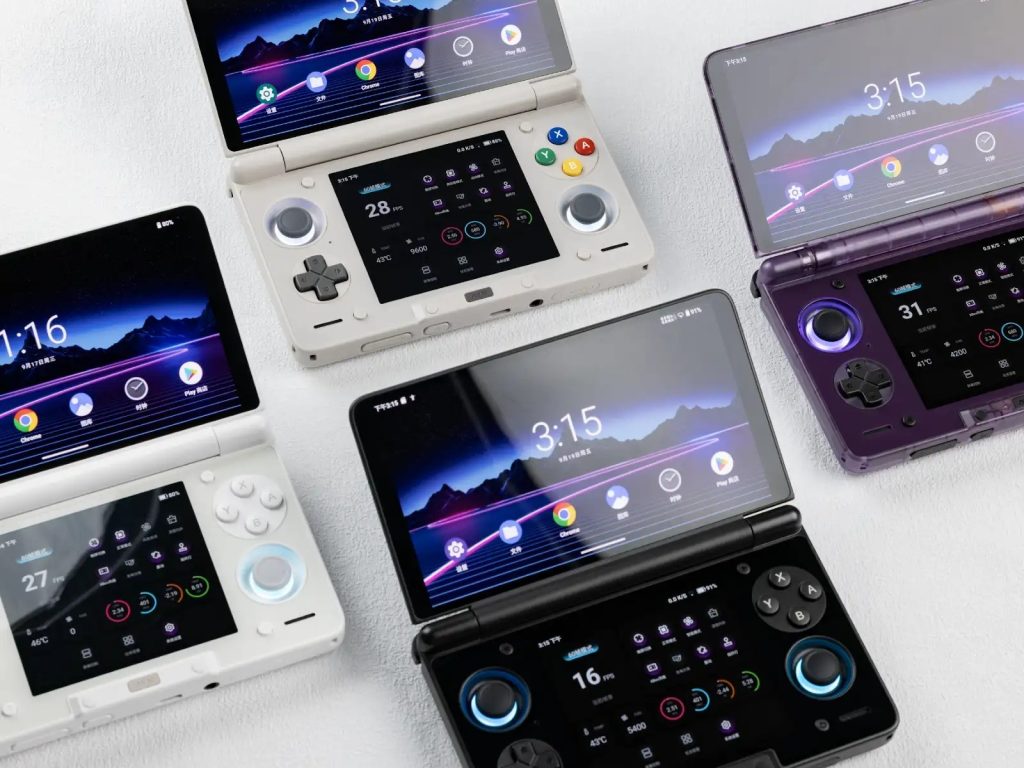
Owning one of the most powerful handheld gaming consoles of the 2026 era like the AYN Thor is like buying a hypercar: unparalleled raw power, top-tier design, and a machine ready to crush any AAA PC game or heavy emulator. However, that muscular hardware runs on Android—an open ecosystem full of volatility, combined with community-developed emulation software that is rarely perfect.
Surely more than once you have had to scratch your head when a favorite PS3 title suddenly suffered a catastrophic FPS drop after an hour of combat, or the buttons abruptly froze when opening an older emulator.
Don’t worry. This article is born to be your Ultimate Survival Guide. Together, we will break down and completely resolve these technical “pain points” from basic to advanced on the AYN Thor, turning this machine into a perfectly operating, smooth, and flawless ecosystem.
1. Beginner’s Technical Pain Points: Storage Access Permissions & Game Crashes
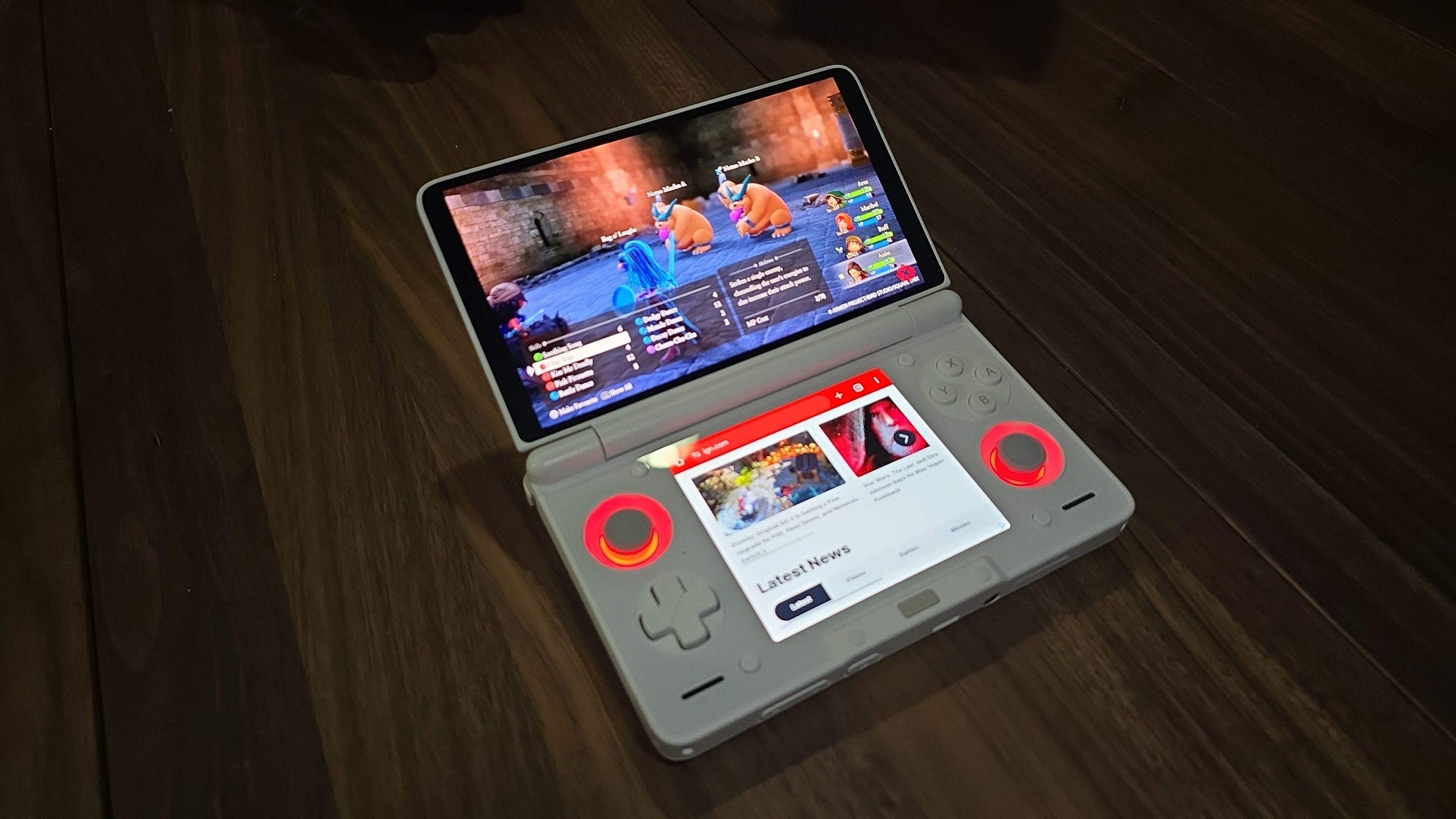
When unboxing the AYN Thor, the most common beginner mistake is immediately cramming hundreds of gigabytes of ROMs into the memory card, firing up the emulator, and… getting a black screen or an app crash notification. The nature of modern Android versions involves an extremely strict security mechanism.
ROM Scanning Error (Due to Android’s Scoped Storage)
Since recent Android versions, Google has enforced Scoped Storage, limiting third-party apps’ access to folders. If your emulator (like DuckStation, PPSSPP, or Yuzu) cannot see your game files, follow these steps:
Go to Settings on your AYN Thor $rightarrow$ Apps $rightarrow$ Select the malfunctioning emulator.
Find Permissions $rightarrow$ Files and Media.
Change from Allow access to media only to Allow management of all files.
If the emulator requires you to select a directory, create a master folder named Games right at the root of your SD card to avoid creating too many duplicate subfolders that scatter the system’s scanner.
Native Android Games Crashing Immediately Upon Startup
For blockbusters like Zenless Zone Zero or Genshin Impact, crashing right at the logo screen is usually caused by a conflict between external APK installations and Google’s security check system (Play Protect).
The Solution: Make sure you have enabled the Bypass Google Attestation feature in AYN’s developer settings (if available), or clear the app’s Cache and Data, then restart the device so the system can reallocate virtual RAM.
2. Fixing Controller Mapping Issues on Legacy Emulators
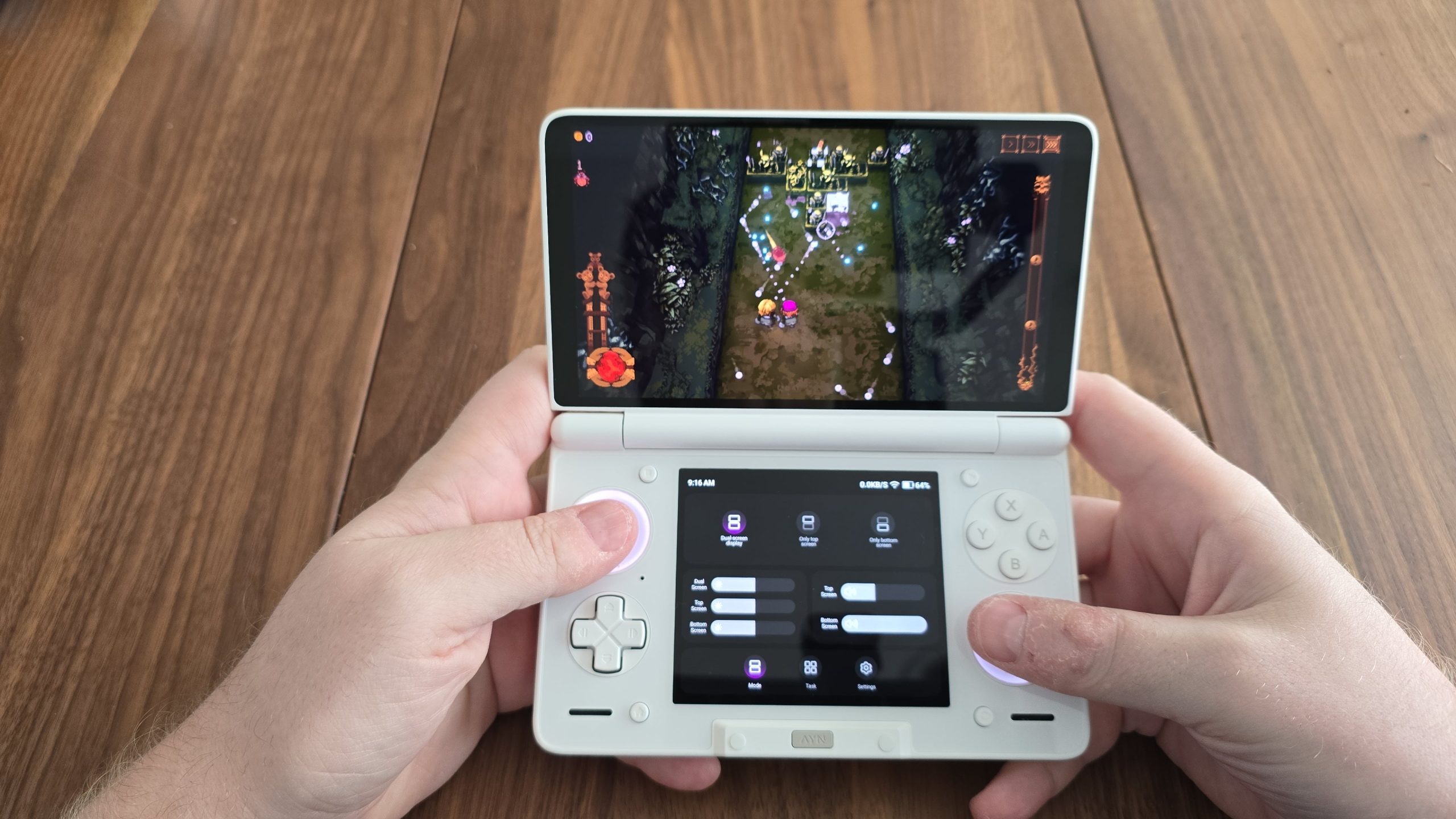
The AYN Thor features an incredible controller hardware layout with Hall Effect joysticks and mechanical switches. However, “antique” emulators or older builds (such as certain old RetroArch builds, ePSXe, or Mupen64) often misidentify button layouts, or worse, completely ignore the device’s built-in controller.
Step 1: Flexibly Switch Between X-Input and D-Input
AYN’s system allows you to change the communication method of the integrated controller.
Swipe down the notification bar to open Quick Settings.
Find the Odin/Thor Controller Mode icon.
Tip: For PC emulators (Winlator, Mobox) or modern console emulators (Switch, PS3), always keep it in X-Input mode (Xbox layout). For older systems or early Android games, switch to D-Input so the device correctly recognizes the retro button structure.
Step 2: Force Manual Mapping in the Emulator
If you enter a game and buttons don’t respond, don’t panic. Access the controller settings within that specific emulator:
Special Note: When remapping D-pad buttons and joysticks, push the analog stick decisively. If the emulator misidentifies the X/Y axes, press Reset and repeat the process slowly.
Step 3: Use the AYN Screen Mapper Tool for Games Without Controller Support
For native Android games that strictly require touch controls (e.g., older MOBAs or RPGs), swipe from the right edge of the screen to open the AYN Dashboard $rightarrow$ Toggle Key Link/Screen Mapper. Drag and drop the virtual button overlays to the corresponding touch locations on the screen and hit Save.
3. Handling Sudden Performance Drops (Thermal Throttling) & RAM Overflow During Long Sessions
You’re in the middle of a silky-smooth 60 FPS combat sequence, and suddenly, after about 1-2 hours, the frame rate plummets drastically to 15-20 FPS while the device gets scorching hot? Or did you leave your device in Sleep Mode while running a Switch game, only to find the game crashed back to the home screen when you woke it up? These are textbook symptoms of Thermal Throttling (downclocking due to overheating) and Memory Leaks (RAM overflow).
Temperature Control: Mastering the Active Cooling System
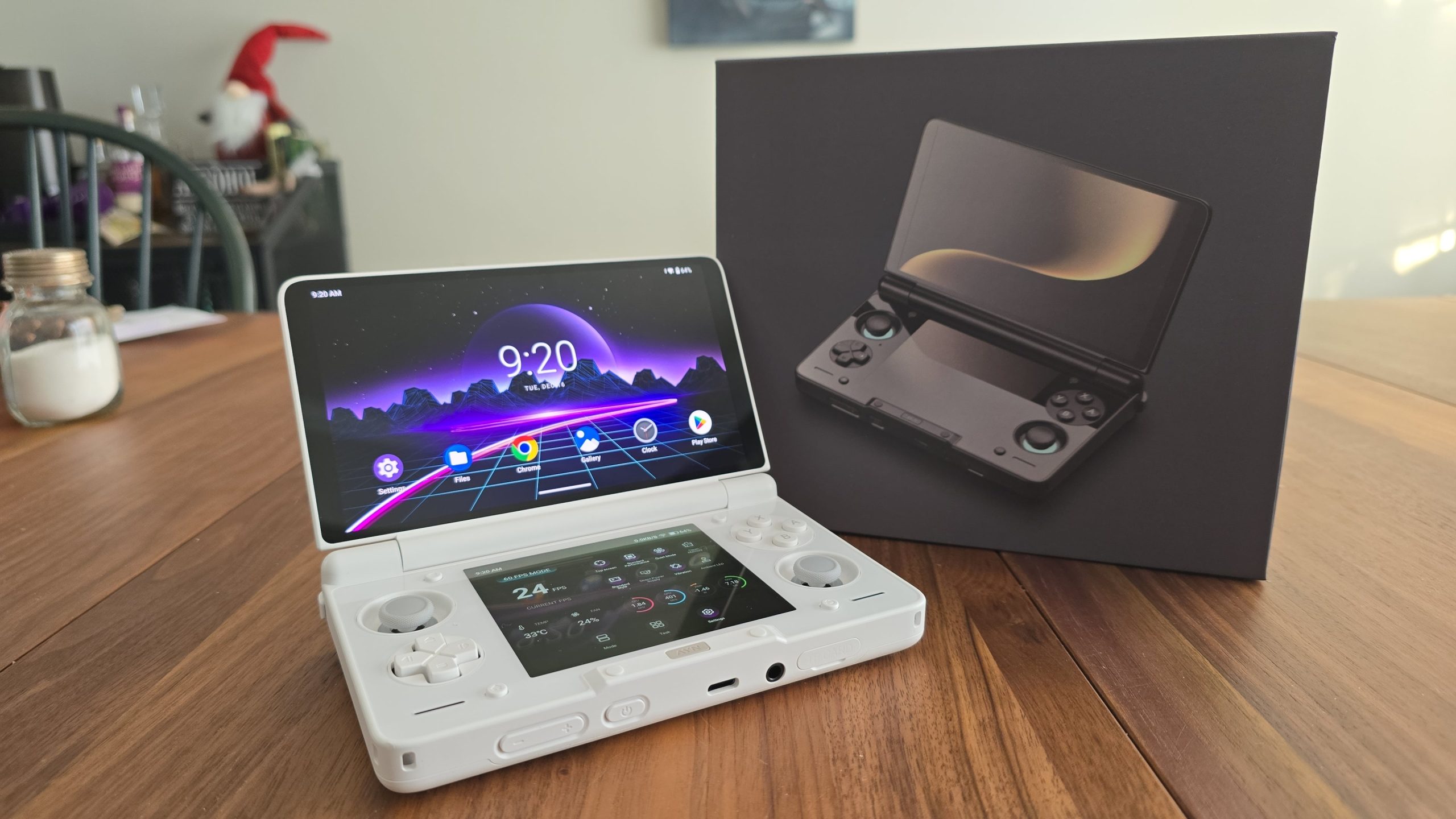
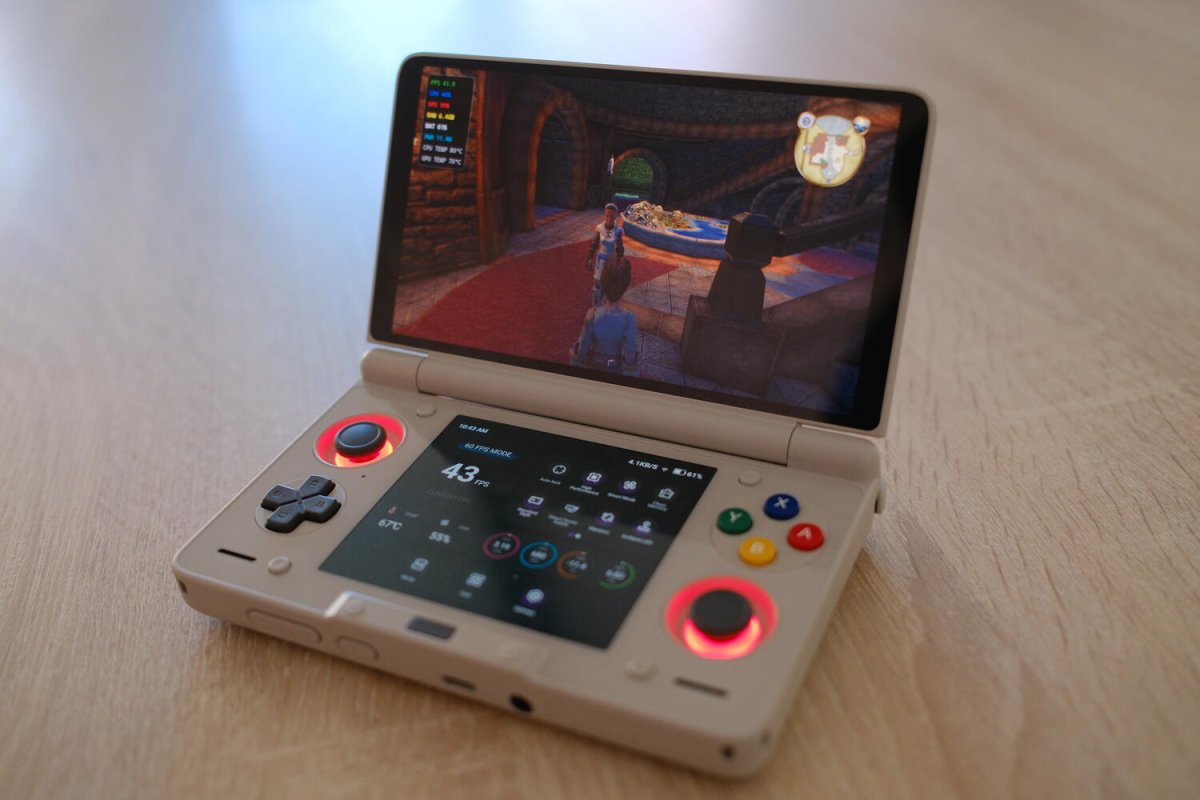
The AYN Thor is armed with premium fan cooling and a vapor chamber, but if you leave the device on its default profile, the system will prioritize silence over performance.
Change Performance Profile: Never play heavy games (PS3, Switch, Windows) in Standard mode. Swipe into Quick Settings and toggle it to High Performance or Overclock Mode.
Configure the Fan Curve: Change from Smart (Automatic) mode to Sport or Smart Turbo mode. The fan will whine a bit louder, but it will hard-lock the SoC temperature below 75°C, completely wiping out thermal-induced frame drops.
Resolving RAM Overflow (Memory Leaks) During Extended Sessions
Emulators like Winlator or early Switch emulation builds frequently suffer from memory leaks where they fail to release GPU shader caches after long periods of operation.
| Symptom | Root Cause | Quick Fix |
| Gaming smoothly for about 45 minutes before progressive lag sets in. | VRAM overflow within the Adreno GPU’s virtual cache. | In emulator settings, reduce the Graphics Shader Cache size or switch from Vulkan to OpenGL (if supported by the game). |
| Game crashes immediately when waking the device from Sleep mode. | Android automatically kills background processes to save battery. | Go to Settings $rightarrow$ Battery $rightarrow$ App Battery Management $rightarrow$ Select the emulator $rightarrow$ Change to Unrestricted. |
-
Instant RAM Release Tip: Take advantage of the built-in Clean RAM feature on the AYN Dashboard to sweep away background Google processes before starting an extended gaming marathon.
4. Safe Firmware Update (OTA) Guide & How to Rescue a Soft-Bricked Device (Stuck at Logo)
One fine day, AYN releases a brand new OS update promising a 20% performance boost. Improperly updating (network loss, running out of battery midway, or a rooted device) can turn your multi-hundred-dollar machine into nothing more than an expensive paperweight (Soft-brick / Stuck at logo).
Golden Rules for Safe OTA Updates
Charge to at least 60% or plug the PD charger directly into the device throughout the entire update process.
Completely disable system mods: If you are using Magisk, LSPosed, or any third-party kernel clock management software, uninstall or disable them before hitting the Update button.
Do not touch the power button or attempt to restart while the progress bar is running.
Step-by-Step Guide to Rescuing a Soft-Bricked Device (Stuck at Logo)
If after an update or system tweaking, your AYN Thor remains frozen at the boot screen (Boot Loop / AYN Logo Loop), stay calm and execute this advanced recovery procedure:
Solution 1: Boot into Recovery Mode to Wipe Cache
The majority of logo-stuck errors result from a conflict with old cache data after moving to a new firmware.
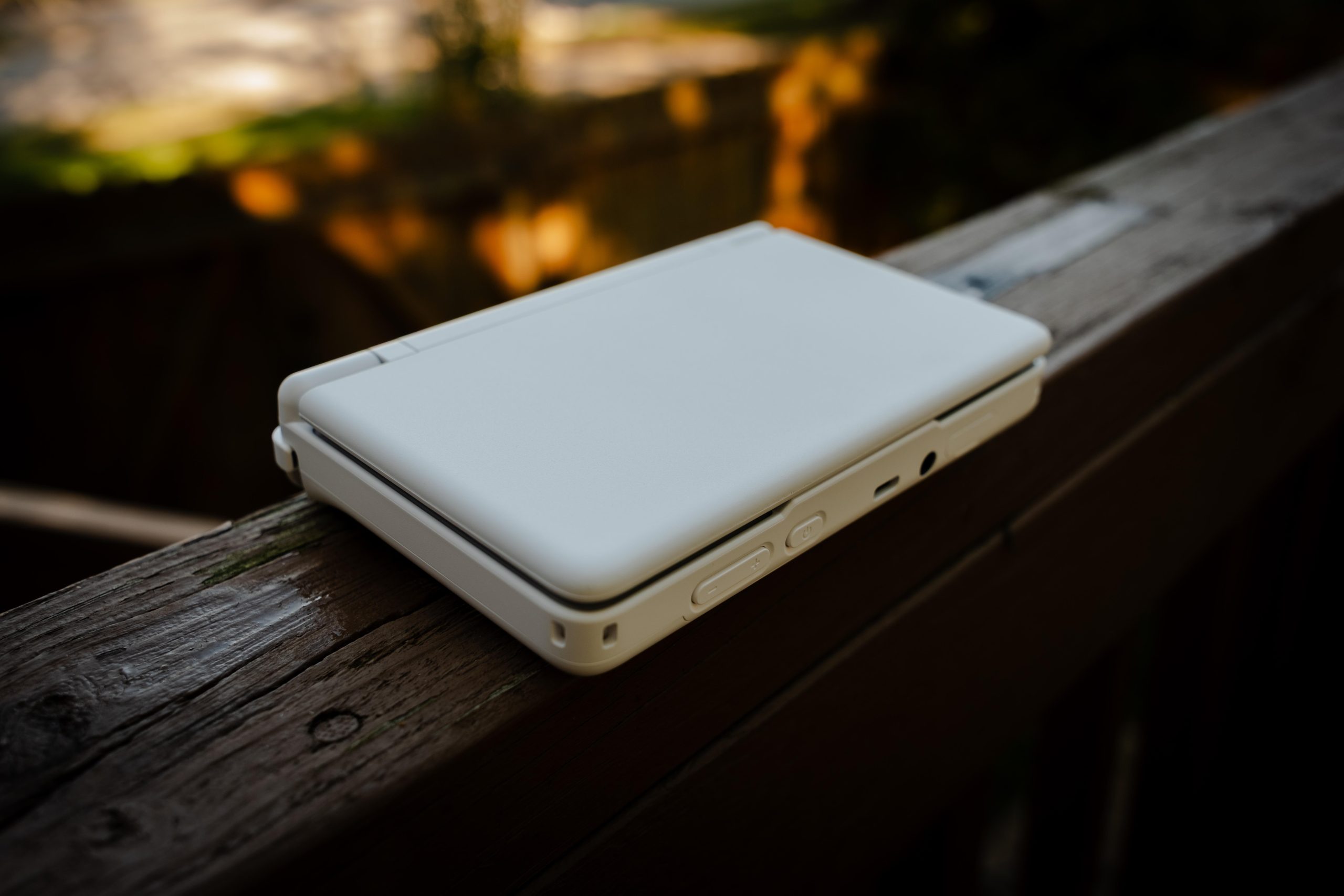
Step 1: Press and hold the Power button for 10-15 seconds to completely shut down the device.
Step 2: Press and hold the Power + Volume Down buttons simultaneously (or Volume Up depending on the hardware revision) until the Recovery screen appears with the Android robot icon.
Step 3: Use the volume keys to navigate, select Wipe Cache Partition $rightarrow$ Press the Power button to confirm.
Step 4: Select Reboot system now. If the device remains stuck, repeat the steps and choose Wipe Data / Factory Reset (Note: This will erase all data in the internal storage, returning the machine to its factory state).
Solution 2: Flash the Stock Firmware via Computer (Fastboot Mode)
If Solution 1 fails, it means the System Partition has a corrupted core file. You need to flash a clean operating system from a PC.
Step 1: Go to AYN’s official website, download the Official Firmware ROM matching your specific AYN Thor model number, and grab the AYN Flash Tool for PC.
Step 2: Put the Thor into Fastboot mode: Power off the device $rightarrow$ Hold Power + Volume Up until the screen displays FASTBOOT.
Step 3: Connect the Thor to your PC using a high-quality USB-C cable (plug it into the rear USB ports of the PC for stable current delivery).
Step 4: Open the AYN Flash Tool on your PC, select the path to the unzipped Firmware folder $rightarrow$ Click Flash. Wait roughly 5-10 minutes until the computer displays Success. The AYN Thor will automatically reboot and magically come back to life.
Conclusion
Mastering the AYN Thor goes beyond knowing which buttons to press; it’s a journey of deeply understanding your machine. By properly applying storage permission tweaks, setting up correct controller mapping configurations, managing thermals intelligently, and keeping the recovery playbook on hand when an OS hitch happens, you have officially knocked down every annoying technical barrier.
Now, the ultimate entertainment space is fully within your grasp. Fire up the machine, crank the cooling fan to maximum, load your absolute favorite game, and enjoy pure moments of bliss with the king of handheld technology, the AYN Thor!